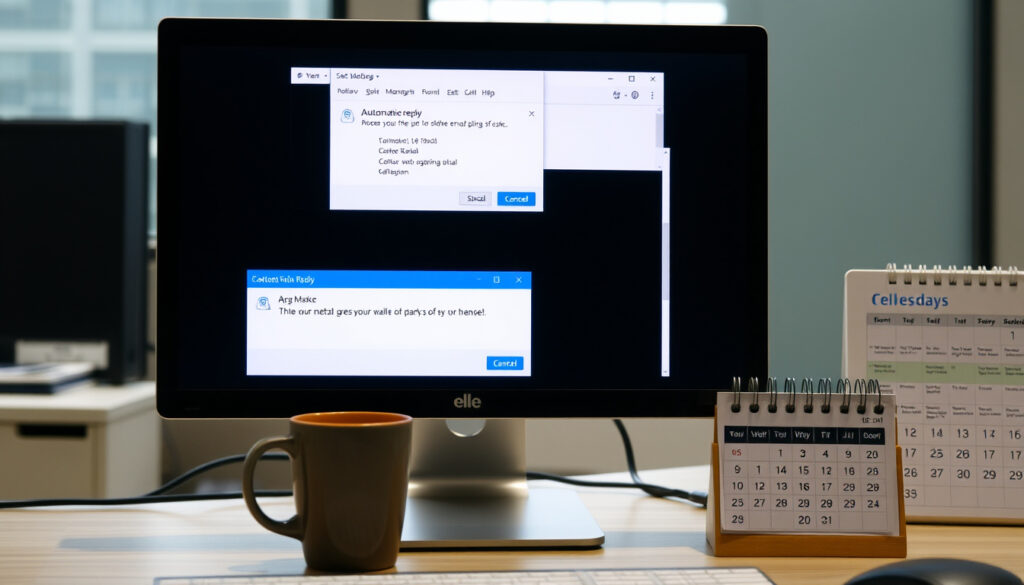
Out of Office Message Outlook: Setup Guide and Examples
You’ve typed your out-of-office message three times and still aren’t sure it sounds right. That nagging feeling is normal—getting the tone, the details, and the setup right in Outlook can make the difference between a clean week away and an inbox full of follow-ups.
Feature name: Automatic Replies (Out of Office) ·
First introduced in: Outlook 2003 ·
Supported platforms: Windows, Mac, Web, iOS, Android ·
Number of Outlook versions with OOO: 5
Quick snapshot
- Microsoft recommends including a return date and alternative contact (Indeed Canada (career guidance site)).
- You can set different messages for internal and external senders (Microsoft Support (official documentation)).
- Whether OOO features are identical across all major Outlook platforms.
- Whether OOO messages render consistently across all third-party email clients.
- The exact percentage of Outlook users who customize their automatic replies.
- Out-of-office replies have been a built-in Outlook feature since 2003 (Microsoft Support (official documentation)).
- Test your message before leaving, and set an end date so replies stop automatically (Inbox.com Blog (email productivity tips)).
Here are the key facts about Outlook automatic replies.
| Feature | Detail |
|---|---|
| Feature name | Automatic Replies (Out of Office) |
| First Outlook version | Outlook 2003 |
| Supported platforms | Windows, Mac, Web, iOS, Android |
| Max characters per message | No enforced limit (but best under 200) |
| Can include attachments | No (text-only) |
What is a good out of office message?
Key elements of an effective OOO message
- State the dates of your absence clearly (Indeed Canada (career guidance)).
- Include an alternative contact for urgent matters, if applicable (ProAlt (business communication resource)).
- Keep the tone polite and concise rather than overly casual (Inbox.com Blog (email productivity tips)).
Common mistakes to avoid
- Sharing excessive personal details about your trip or health (Inbox.com Blog (email productivity tips)).
- Using vague return timelines (e.g., “I’ll be away for a few days”) (Inbox.com Blog (email productivity tips)).
- Forgetting to test the reply before leaving (Inbox.com Blog (email productivity tips)).
The risk of skipping these basics: frustrated senders who don’t know when to expect a response or who repeatedly contact coworkers for updates. A clear, concise OOO message reduces follow-up emails—the whole point of setting one up.
What are good examples of out of office replies?
Example for short absences (1–2 days)
Subject: Out of office – back tomorrow
“Thank you for your email. I’m out of the office today, January 8, and will return on January 9. If this is urgent, please contact [Name] at [email]. Otherwise, I’ll respond when I’m back.” (Indeed Canada (career guidance))
Example for extended leave (1+ weeks)
Subject: Out of office until [date]
“Thanks for reaching out. I’ll be out of the office from February 10 through February 21, with limited access to email. For immediate assistance, please reach [Name] at [email]. I’ll reply to your message after my return.” (ProAlt (business communication resource))
Example for internal colleagues vs. external clients
Internal: “Hi team, I’m OOO until Monday. For project matters, check with [Name]. Otherwise, talk then.”
External: “Thank you for your email. I’m out of the office until [date]. If you need immediate help, please contact [Name] at [email]. I’ll respond as soon as I return.” (Microsoft Support (official documentation) recommends separate messages for inside and outside your organization)
Internal teams need less formality and more pointers to project resources; external clients expect a professional tone and clear escalation path. Mismatching can erode trust or waste colleagues’ time.
The pattern: each example serves a distinct audience and duration. Customizing your message based on who receives it and why they’re writing reduces unnecessary back-and-forth.
How do I set up an automatic out of office email on Outlook?
Set up in Outlook desktop (Windows/Mac)
- Open Outlook and go to File > Automatic Replies (Out of Office).
- Select “Send automatic replies.”
- Optionally set a date range so replies turn off automatically (Microsoft Support (official documentation)).
- Compose your internal and external messages. Microsoft recommends using separate replies for inside and outside your organization.
- Click OK.
For related Windows guidance, check out our guide on Windows 10 End of Life – Timeline, Risks and Upgrade Guide.
Set up in Outlook Web App (OWA)
- Open Outlook on the web and click the Settings gear (⚙) > View all Outlook settings.
- Go to Mail > Automatic replies.
- Toggle on “Send automatic replies.”
- Set a start and end time if desired.
- Enter your message and choose whether to send to contacts only or all external senders.
For related Windows guidance, check out our guide on Windows 11 Media Creation Tool – Step-by-Step Guide.
Set up in Outlook mobile app (iOS/Android)
- Open the Outlook app and tap your account avatar.
- Go to Settings (gear) > Automatic Replies.
- Toggle it on, set dates if available, and compose your message.
- Note: the mobile version uses the same reply as Outlook on the web (Microsoft Support (official documentation)).
Microsoft warns that sending automatic replies outside your organization can send your reply to newsletters, advertisements, and potentially junk email. Use “Send replies only to contacts” if you’re concerned.
The catch: each platform offers slightly different controls, but all let you set a date range—use it. Without an end date, your auto-reply could run indefinitely until you remember to turn it off.
How do you say out of office in a professional way?
Tone and language guidelines
- Use polite, formal language for external clients and partners (Indeed Canada (career guidance)).
- Indicate when you will respond and who to contact in emergencies (ProAlt (business communication resource)).
- Avoid overly casual phrases like “be back soon” for external recipients (Inbox.com Blog (email productivity tips)).
Phrases to use and avoid
Choose your words carefully to maintain professionalism.
| Use | Avoid |
|---|---|
| “I will respond to your message when I return on [date].” | “I’ll get back to you ASAP.” (vague) |
| “For urgent matters, please contact [Name] at [email].” | “For anything important, just ask my assistant.” (unprofessional without details) |
| “Thank you for your patience.” | “Sorry I’m out!” (too casual) |
The implication: your language choice signals professionalism. A well-crafted phrase reassures the sender while protecting your time—bad phrasing invites follow-ups or confuses urgency levels.
How to craft an effective out-of-office message?
Structure of an effective OOO message
- Subject line: Clearly indicate absence (e.g., “Out of office – returning [date]”) (Indeed Canada (career guidance)).
- Greeting: “Thank you for your email.”
- Absence period: Specify the exact dates (Indeed Canada (career guidance)).
- Email access: State whether you will have email access (Indeed Canada (career guidance)).
- Alternative contact: Provide a name and email, with their consent (ProAlt (business communication resource)).
- Closing: “I will respond to your message as soon as possible after my return.” (ProAlt (business communication resource))
Customizing for different audiences
- Internal colleagues: Shorter, perhaps omit alternative contact if team already knows.
- External clients: More detailed, include escalation path, polite tone.
- Unknown senders: Use a generic version, consider limiting to contacts only (Microsoft Support (official documentation)).
Longer messages don’t get read; shorter ones risk missing key details. The sweet spot: 3-4 sentences covering absence, alternative contact, and reply timeframe—enough to handle 80% of sender needs.
Testing your message by sending a test email to yourself ensures the formatting and links work before you leave. A broken auto-reply is worse than none.
What’s unclear about out-of-office messages?
- Consistency across email clients: While Outlook handles its own messages reliably, other providers (Gmail, Yahoo) may interpret or display automatic replies differently. There is no industry standard for OOO format.
- Usage statistics: No publicly available data from Microsoft indicates how many users customize their OOO messages or how many rely on default templates.
These gaps don’t change the fundamentals: stick to plain text, avoid HTML (not supported in OOO messages per Microsoft Support (official documentation)), and keep it simple.
“Setting a date range is the single most effective way to ensure your automatic replies stop automatically. Without it, you risk sending OOO messages long after you’re back.”
Microsoft Support (official documentation)
“A professional out-of-office message doesn’t just state you’re away—it tells the sender what to expect next. That reduces frustration for everyone.”
Indeed Canada (career guidance)
For the professional who receives dozens of emails daily, a well-crafted OOO reply is a time-saving tool, not an afterthought. The choice is clear: spend 10 minutes setting up a proper message now, or spend hours untangling follow-ups after your return.
For a deeper dive into crafting effective auto-replies, refer to this comprehensive out-of-office guide that covers both Gmail and Outlook setups.
Frequently asked questions
Can I schedule an out-of-office message in advance?
Yes. In Outlook desktop and web, set a start date and end time when you enable automatic replies (Microsoft Support (official documentation)).
Will my out-of-office reply be sent more than once to the same sender?
Outlook typically sends the reply only once per sender per session to prevent duplicate messages.
How do I turn off automatic replies when I return?
Go back to the same settings screen and toggle off “Send automatic replies.” If you set an end date, it turns off automatically.
Can I set different messages for internal and external senders?
Yes. Microsoft recommends this approach. In the Automatic Replies dialog, you can write separate messages for people inside your organization and those outside (Microsoft Support (official documentation)).
Do out-of-office messages work with shared mailboxes in Outlook?
Shared mailboxes don’t support automatic replies in the same way. You’ll need to enable them separately on the mailbox’s account or use a rule.
What happens if I don’t set an end date for my OOO reply?
The auto-reply continues until you manually disable it. That can lead to embarrassing situations if you forget to turn it off after returning.
Can I add a calendar link or alternative contact details in the message?
You can include a calendar link as text, but Outlook OOO messages are plain text, so the link won’t be clickable in some email clients.
Does Outlook support HTML formatted out-of-office messages?
No. Outlook automatic replies are text-only. HTML formatting (bold, colors, images) is not supported (Microsoft Support (official documentation)).
More related posts
 Duke Point Ferry Schedule: Times & Status Today
 Montreal to New York: Flight, Train, Bus & Driving Guide
 Nuts and Bolts Recipe: Classic Homemade Snack Mix Guide
 Sports Store Near Me – Closest Chains, Hours and Coverage
 How to Make a Sourdough Starter – Complete Beginner's Guide
 iPhone SE 3rd Generation: Specs, Support & 2026 Review
 How Many Grams in a Teaspoon – Sugar, Salt, Flour Weights & Chart
 The Marsh King’s Daughter – Plot, Cast, Book vs Movie Guide